
The time-consuming part of Google Gemini Gems is teaching them your rules: which school dates matter, what belongs in a short answer, and which reference file settles a question. I want that work saved somewhere I can actually open.
For the Gemini Gems to skills transition, preserve your complete instructions and reference files, then test the replacement with one familiar input. Personal and Workspace accounts have different deadlines. Automatic migration does not guarantee every attachment survives.
Here is how I keep Gemini custom instructions usable through the change, with a school volunteer notice as a repeatable comparison sample.
Which deadline belongs on your calendar?
Start with the account that owns the Gem. A school notice processed through your personal Gmail account follows the personal schedule. The subject of the document does not determine the account type.
As of November 11, 2026, Google's Gems transition guidance gives these dates:
Account | Published transition | My priority |
|---|---|---|
Personal, age 18+ | Read-only November 17, 2026; removed December 17. | Save the original before access ends. |
Workspace business and enterprise | No earlier than March 1, 2027. | Follow the organization's migration notice. |
Workspace education | No earlier than June 1, 2027. | Coordinate changes to shared school workflows. |
Personal accounts belonging to people under 18 have a later, unannounced schedule. Nonprofit Workspace accounts are listed for March 2027 in the personal help page.
The Workspace timetable moves Gems into Settings on November 17 while allowing continued use. That wording applies to managed accounts; use the personal help page for a personal login.
For an adult personal account, I save the material before the first cutoff. The November cutoff ends ordinary use and editing; December ends access to the old Gem. Those are different practical deadlines.
Workspace users also need to distinguish destinations. Google's November Workspace rollout announcement says Gemini app skills and Workspace skills remain separate. Automatic migration creates drafts in the Gemini app; it does not install them in Gmail or Workspace Studio.
Keep organization-owned files within approved storage. Moving a work Gem into a personal account just to beat a deadline introduces a separate permissions problem.
Save Google Gemini Gems as instructions plus evidence
A name and a prompt are only part of the workflow. The attached document may contain the rule that makes the answer dependable.
I start with the Gem used for a recurring task. Preserve that one completely before touching abandoned experiments. Open its editor on a computer and save the name, description, and full instruction text in a readable document.
Under Knowledge, open and download each attachment. My export checklist is deliberately short:
Identity: owning account, Gem name, and export date.
Instructions: full text, including examples, exceptions, and formatting rules.
References: actual downloaded files, with filenames and sizes recorded.
Baseline: one privacy-safe input and its original response, while the Gem still runs.
Missing pieces: links, inaccessible files, or tools needed to complete the task.
Open each downloaded reference locally once. You should see the document's contents, not a shortcut asking you to return to the account. That is the acceptance standard for this export.
Put these items together in a folder such as school-notice-helper. Keep stable rules separate from changing facts: extracting signup deadlines belongs in the instructions; this year's volunteer restrictions belong in the reference file.
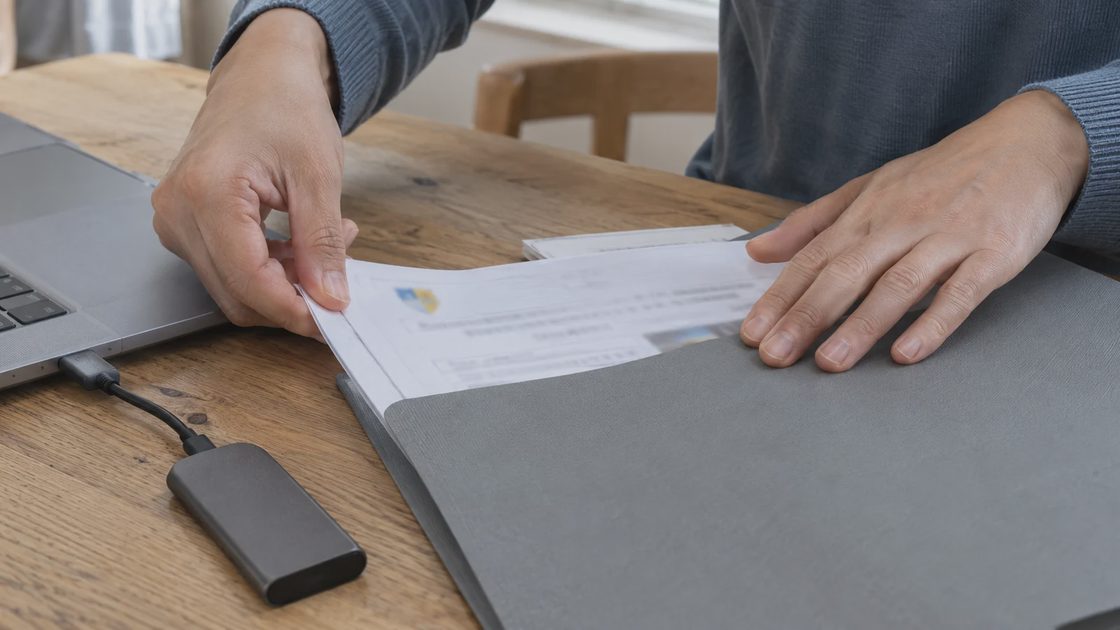
Attachments need triage before migration. Google sets a 100 MB combined file limit and removes the largest files first when automatically reducing an oversized collection. Unsupported attachments, including audio, video, and legacy Office formats, do not transfer.
Choose the working set yourself. For a volunteer helper, I keep the current role restrictions and remove an outdated brochure from the upload. Keep excluded originals in your saved folder. Convert an old DOC file to a supported format, then confirm that its tables and restrictions remain readable.
Live references need their own record. Google says skill downloads omit connected Drive files and notebooks. Record their source locations and access requirements separately; save an allowed static copy when you need a self-contained archive. A downloaded skill package alone cannot preserve that live connection.
How to migrate Gemini Gems without changing the recipe
Copy the existing routine before rewriting it. When the instructions, files, and test input all change together, a different answer tells you very little.
Google's skill creation and management instructions describe the computer route:
In Gemini, open Customize, then Skills. Expand More when those controls are hidden.
Select Create, then Create manually. Copy the saved name, description, and instructions.
Add supported reference files through the available upload controls, then create the skill.
Start a fresh chat and explicitly select that skill using the slash picker, or the updated at-sign picker.
The same help page also documents folder uploads containing SKILL.md and references. If your screen offers a different attachment route, use the current documented route rather than repeatedly recreating the instruction text.
I keep the first trial limited to this skill. Combining several instruction sets can wait until the original job works.
Already migrated? Compare its instruction text and attachment list with your saved folder. For an inactive draft, review and activate it before testing. No new skill controls yet? Preserve the source material and follow the rollout notice for your account.
Waiting for automatic migration is reasonable for a working Gem with a complete backup. Manual recreation earns its effort when you need to test a frequently used routine before the cutoff.
Use one school notice to expose what changed
Compare the decisions the output supports. A smoother sentence matters less than preserving the signup deadline and the correct volunteer shift.
For a kitchen-table comparison, I use this fictional, privacy-safe teaching sample. It requires no children's names, school address, or contact details. The examples below are acceptance criteria, not recorded Gemini results.
Sent Monday, November 9, 2026. Autumn fair: Saturday, November 21. Adult setup volunteers: 8:30–9:15 a.m. Optional family visiting: 10 a.m.–noon. Sign up by Friday. Consult the attached volunteer role notes.
Make a small reference file containing two rules: adults move tables; children may help with paper signs alongside an adult.
These are the Gemini custom instructions I recommend for this sample:
Separate signup actions, volunteer shifts, and optional attendance. Give the source wording for deadlines. Label dates inferred from relative wording. Include relevant restrictions from the attached role notes. Leave household responsibility unassigned. List missing details under Confirm.
Send the identical notice to the original Gem and the replacement skill in separate fresh chats. Keep the responses beside the source documents. Use this scorecard:
Field | Passing answer |
|---|---|
Signup | Friday, November 13, identified as inferred from the dated notice. |
Setup | Adult volunteers, 8:30–9:15 a.m. |
Family visit | Optional, 10 a.m.–noon. |
Role restrictions | Tables: adults. Signs: children with an adult. |
Responsibility | Unassigned until someone accepts it. |
“Fair, 8:30 to noon” fails because it merges two separate commitments. An answer assigning a parent without being asked fails the ownership rule. Different wording can pass every field.
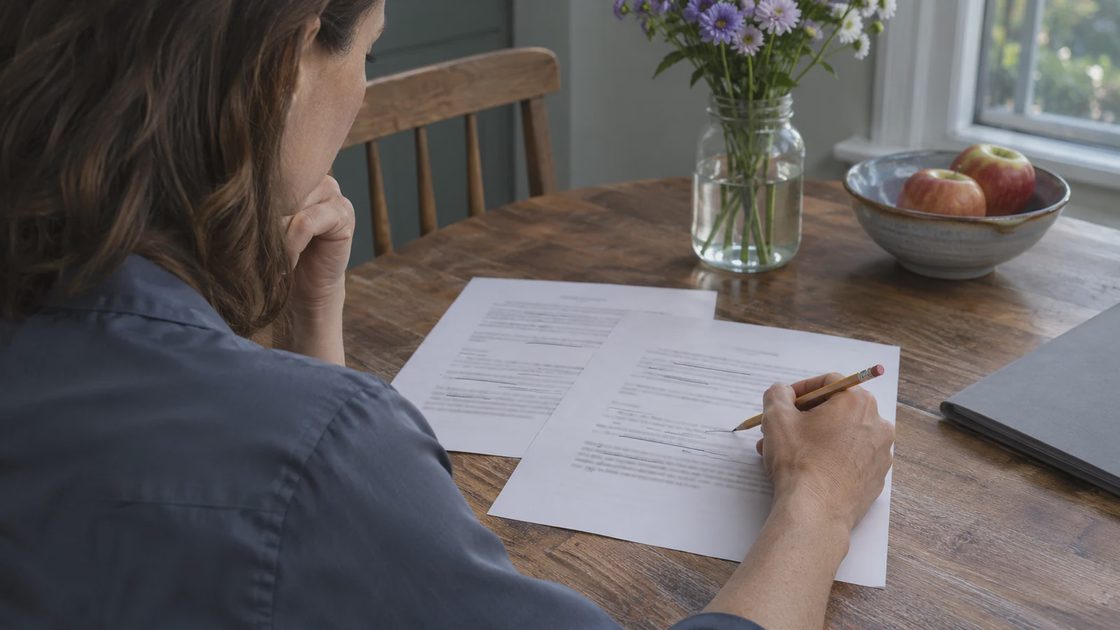
A second, smaller trial catches a different weakness. Remove the signup sentence from a copy of the sample and ask for the same output. The deadline should move to Confirm. Carrying November 13 into that answer means the routine is repeating an example instead of grounding its response in the new notice.
I use this missing-detail trial after the complete sample passes. It tests a specific instruction without adding another school event, another file, or a complicated scoring system.
Repair the missing part, then stop
A missing reference needs a file repair before a longer prompt. When only the replacement drops the adults-only restriction, inspect its attachments and ask it to identify the relevant passage.
Both versions miss the same deadline? Tighten the date rule and rerun that field. Only the replacement fails? Restore its original inputs before changing instructions that previously worked.
No original response saved? Build your expected fields directly from the notice and role notes, as above. That still tests whether the replacement supports the decision you need.
I allow differences in headings and phrasing. I do not accept changed deadlines, missing restrictions, or invented commitments. Stop editing when those fields pass; polishing endlessly creates another maintenance job.
Some saved workflows depend on tools as well as instructions. Google's transition guide lists current skill gaps including Canvas and Deep Research. If the original Gem relies on one, preserve its materials but treat continued execution as unresolved. A successful text-only school-notice trial cannot establish that a tool-dependent workflow still works.
Mei's final verdict: the six-month test
I consider the workflow preserved when its saved materials explain how to rebuild it and its replacement passes the sample. Keep the dated reference with those materials. Replace it when the school term changes, then rerun the relevant fields.
One small step for tonight
Spend five minutes copying your most-used Gem's full instructions into a plain document. Add the owning account and attachment filenames. Tomorrow's export will have a defined scope.
No comments yet — be the first to share a thought.